This is the short version. If you've done this before, it may be all you need. The detailed steps, with pictures, are further down this page. Each step's link takes you straight to it.
Open the dashboard from your computer. Download the file and double-click it, so it opens in Chrome or Edge. Don't open it straight from OneDrive, SharePoint or Teams in your browser. Those show a preview of the file, and the dashboard can't be built inside a preview: you'll see Some content didn't load. Opened properly, there's no OneDrive or Teams bar across the top, and the address bar starts with file:///.
The steps
- Open your saved HSC dashboard from your computer and click ATAR Trajectories. If it asks for an unlock code, type in the one I sent you. Step 1
- Tick the students who sat HSC courses early and are still at your school, then click Save the ATAR Trajectories dashboard. Keep that file where your school keeps student data. Step 2
- Get your marks ready: one row for each student in each course, with their assessment mark so far, and ATAR aspirations on a second sheet if you collect them. Every class, one grade at a time. Step 3
- Open the ATAR Trajectories file from your computer and drop your marks file onto the Your data tab. Step 4
- Check What was found. Settle anything under Needs an answer, check the course matches and the HSC courses already sat, then click Go to the dashboard. Step 5
- Use the student reports in conversations. You can try a different aspiration or estimated mark, add or take out a subject, and make that student's report. Step 6
- Make the reports for everyone on the PDF reports tab. Step 7
When marks change
Open your ATAR Trajectories file, click Start again and add the new marks. After results day, save a new ATAR Trajectories file from your new HSC dashboard. When marks change
If something goes wrong
The dashboard tells you what it found. The most common messages, and what to do, are at the end of this page. If something goes wrong
Still stuck? Email me at gwright@educonsulting.com.au or call 0437 263 762, and say which message you see.
The detailed steps
You save the ATAR Trajectories dashboard from your HSC dashboard once, then add your current students' assessment marks as often as you like. It shows what each student needs in each course to work toward their ATAR aspiration, and the path their marks so far suggest they're on. Your students' marks never leave your school.
Before you start
- Build your HSC dashboard first, as in Getting your HSC results into your dashboard. ATAR Trajectories use your school's own HSC results from it.
- Have your current cohort's assessment marks in Excel or CSV. One grade at a time: Year 12 or Year 11, not both together.
- ATAR aspirations are optional. If you collect them, have them ready too.
- Use Chrome or Edge, and open your files from your computer, not from OneDrive, SharePoint or Teams in your browser.
Step 1: Open ATAR Trajectories
Open your saved HSC dashboard. In the bar across the top, click ATAR Trajectories.

These screenshots come from Brindle Creek High School, a made-up school with made-up students. Yours looks the same, with your school's name and results.
If your file asks for an unlock code, type in the code I sent you and click Unlock. A new copy of your HSC dashboard, with ATAR Trajectories unlocked, is saved to your Downloads folder. Keep that copy and use it from now on.

Step 2: Save the ATAR Trajectories dashboard
Before you save, look under Students who sat HSC courses early. These are students in your latest HSC results with an ROA12 award: they sat an HSC course before their final year. Tick the ones still at your school, so the HSC results they already have count in their ATAR trajectories. Tick all and Untick all help when there are many. Your ticks are remembered.
If any of your students sit an HSC course two years early, also tick Also show the year before.
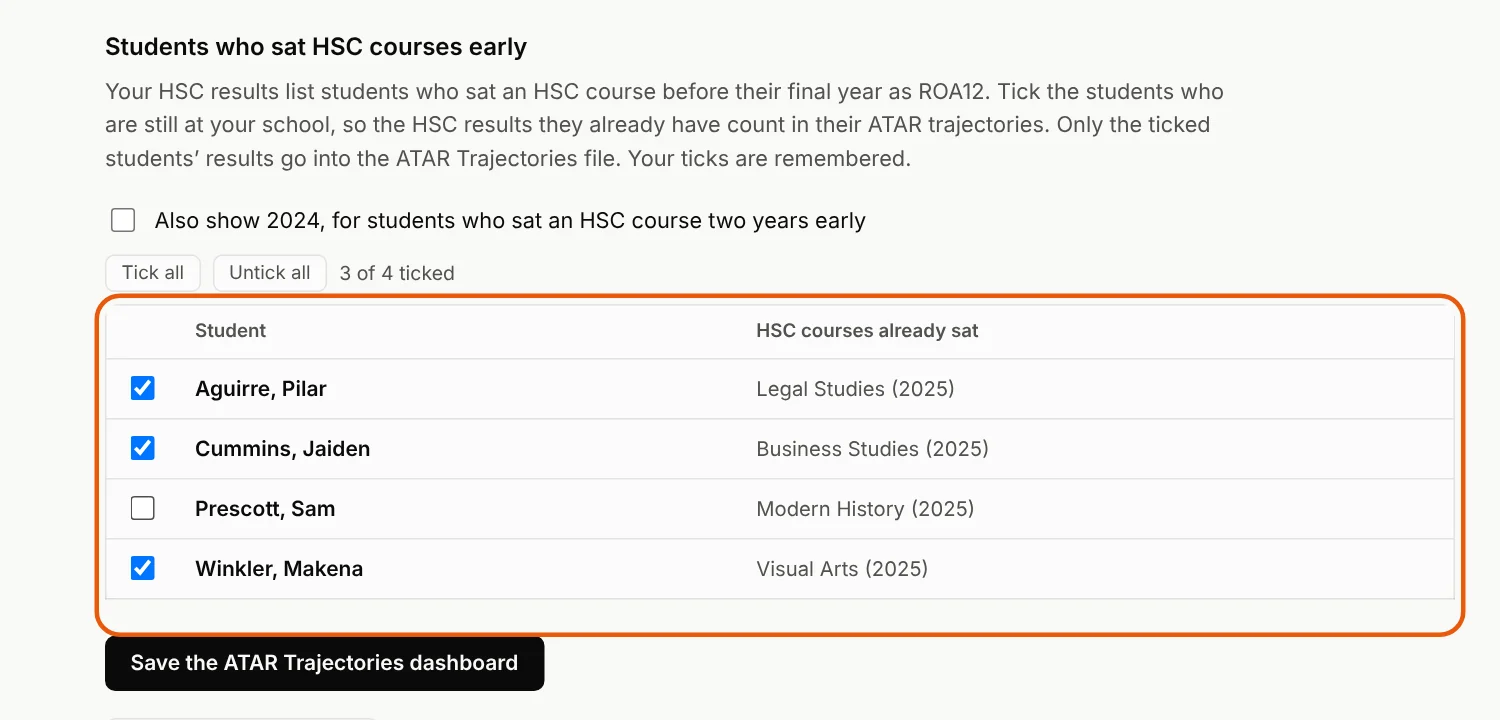
Only the ticked students' results go into the ATAR Trajectories file. Students who have since finished the HSC are left off the list.
Click Save the ATAR Trajectories dashboard.
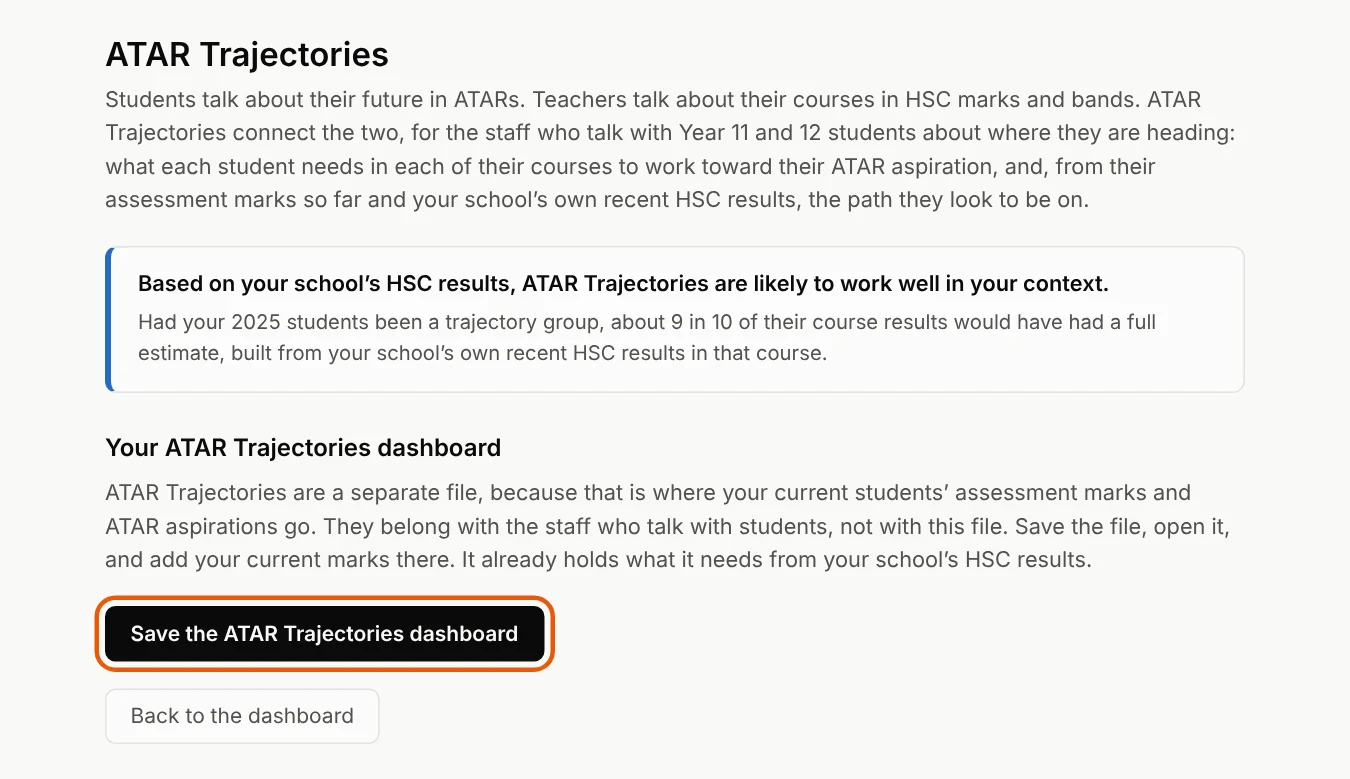
It saves a new file to your Downloads folder, named for example Brindle Creek High School ATAR Trajectories 2026. Move it to wherever your school keeps student data, and share it only with the staff who talk with students about their ATARs.
This is a separate file on purpose. Your HSC dashboard holds past results. This one holds your current students' marks and aspirations.
Step 3: Get your marks ready
The simplest file is an Excel sheet with one row for each student in each course, and each student's overall assessment mark so far:
| Surname | First Name | Course | Final Mark |
|---|---|---|---|
| Aguirre | Pilar | English Advanced | 55.3 |
| Aguirre | Pilar | Legal Studies | 65.7 |
| Aguirre | Pilar | Mathematics Standard 2 | 83.5 |
| Cummins | Jaiden | Biology | 76.5 |
If you have ATAR aspirations, put them on a second sheet in the same file:
| Surname | First Name | ATAR Aspiration |
|---|---|---|
| Aguirre | Pilar | 75 |
| Winkler | Makenna | 83 |
A few things make it work well:
- Every class in every course. Each estimate depends on where a student sits among everyone in that course, so a missing class changes everyone else's estimates.
- Course names as close and clear as you can make them. The dashboard reads most names and abbreviations, and you can fix any it gets wrong in Step 5.
- Names spelt the same on the marks sheet and the aspirations sheet, so they match up.
- Accelerated students studying an HSC course with this grade stay in. Courses they have already sat for the HSC come in from Step 2, so leave those out of this file.
Other layouts work too. A sheet with one row per student and a column for each course, or a markbook for each course, are both read automatically. Several files and sheets can go in together.
Step 4: Add your marks
Open your ATAR Trajectories file from your computer in Chrome or Edge. On the Your data tab, drop your marks file onto the box, or click choose files.
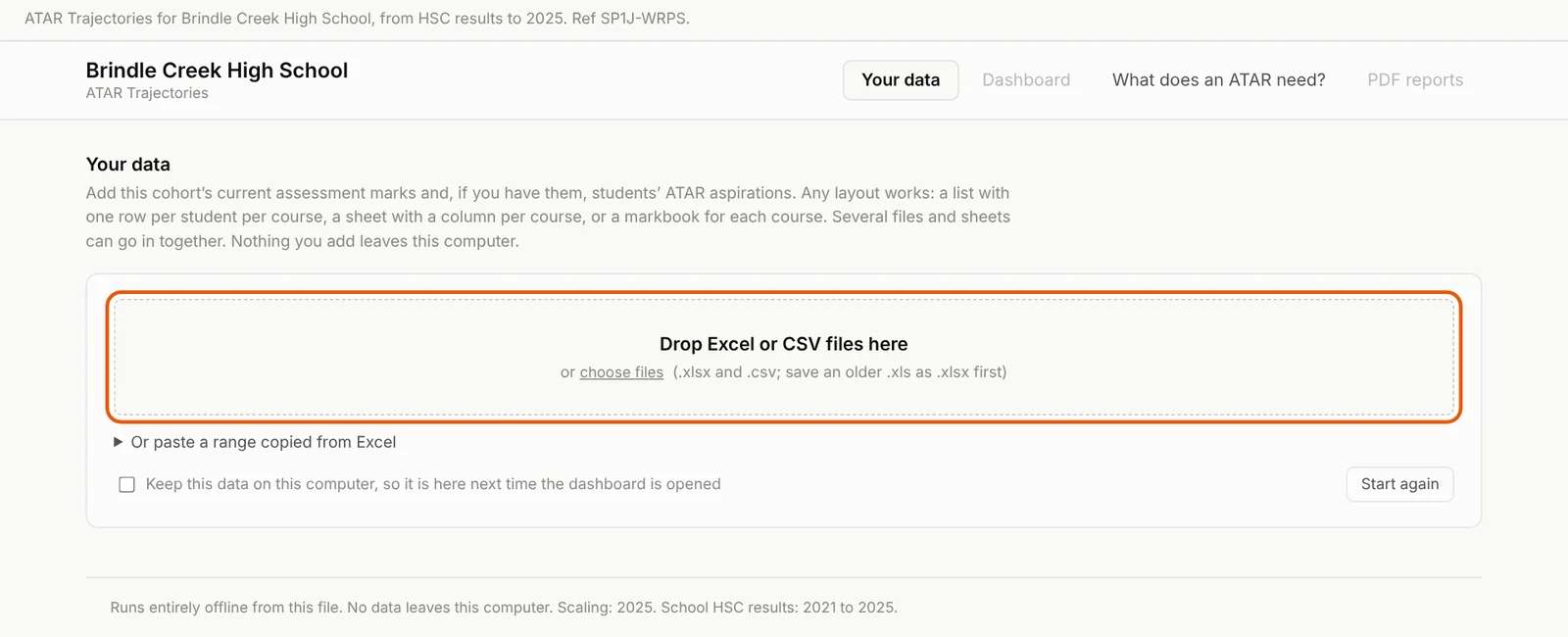
You can also copy the cells in Excel, including the heading row, and paste them under Or paste a range copied from Excel.
The dashboard lists each sheet it read and how it read it. Check these lines make sense.
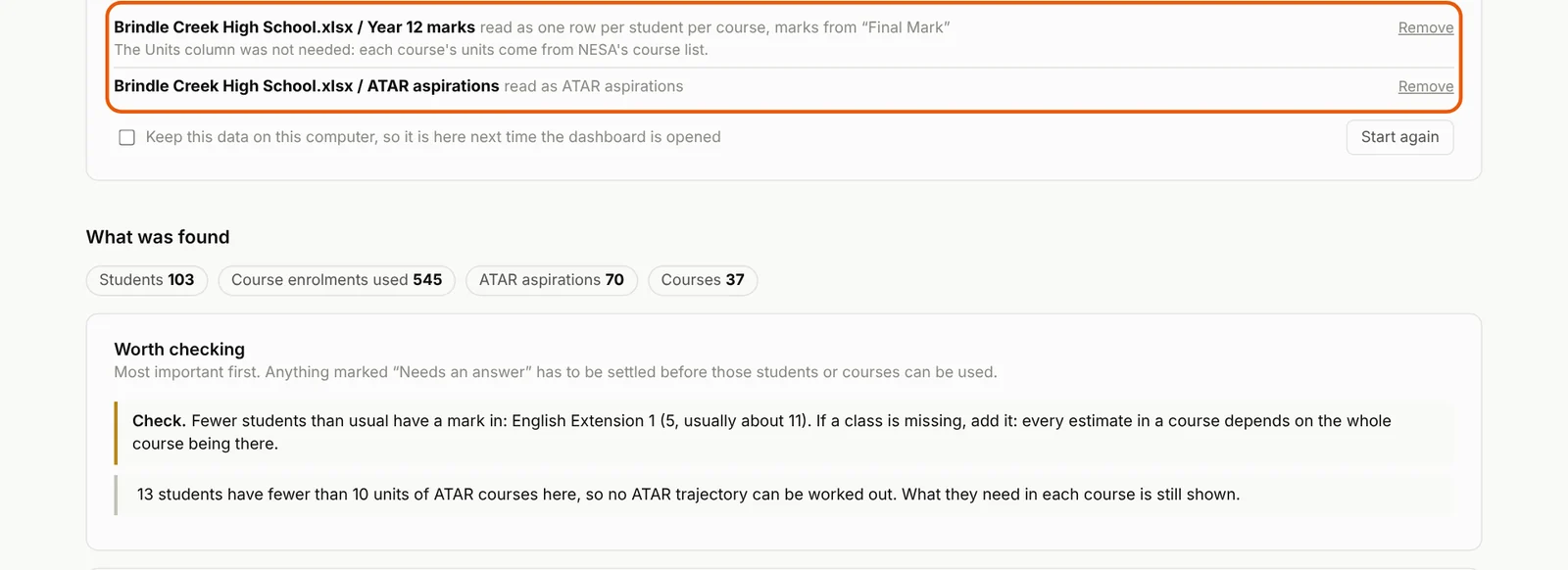
Tick Keep this data on this computer if you want the marks still there the next time you open the file on this computer. Leave it unticked on a shared computer. Nothing is uploaded either way.
Step 5: Check what was found
Under What was found, check the number of students, courses and aspirations look right. Then read Worth checking, most important first:
- Needs an answer must be settled before those students or courses can be used.
- Check is worth a look. In the example above, English Extension 1 has fewer students than usual, which could mean a class is missing.
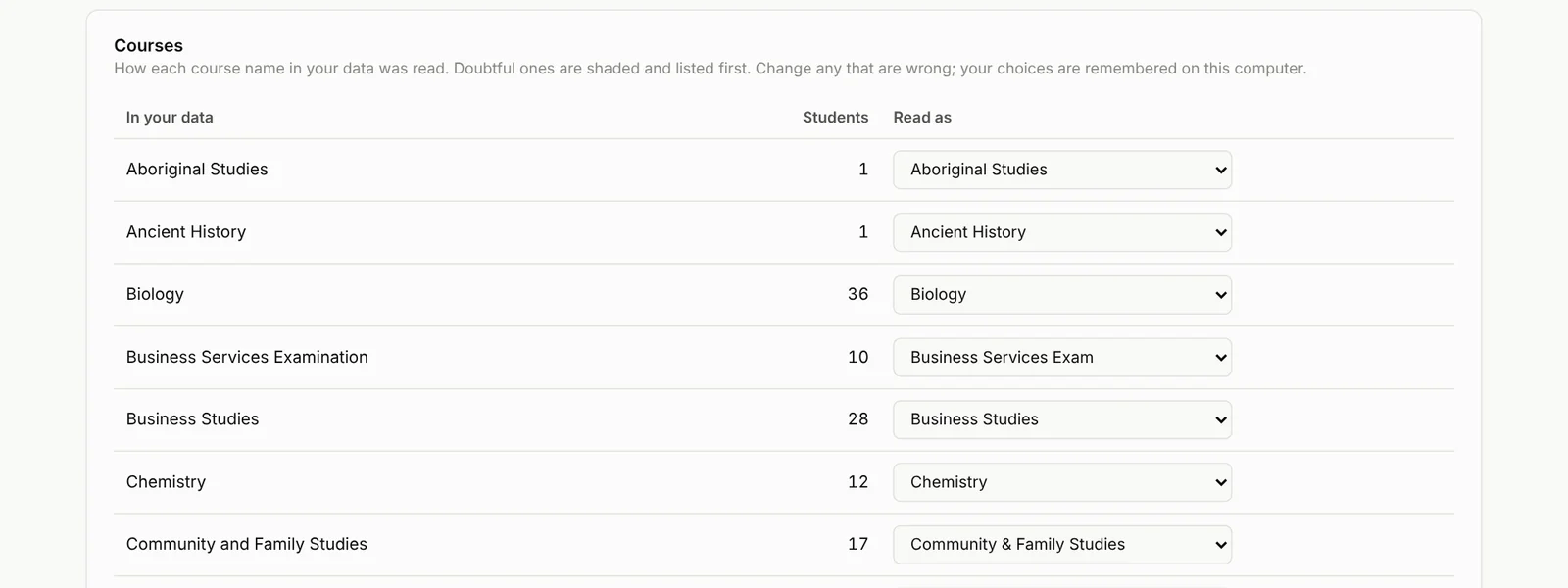
Next, look down Courses. The left column is the name in your file. The right is the course it was read as. Doubtful matches are shaded and listed first. If one is wrong, choose the right course in its dropdown. Your choices are remembered on this computer.
Under HSC courses already sat, the students you ticked in Step 2 are matched to names in your marks. Most match by name. A name spelt differently is shaded at the top, with the likely student suggested. Choose them in the dropdown. Students not found may simply be in another year group, so leave them as they are.

If a course already sat is also in this year's marks, it appears under Courses already sat and in this year's marks. Choose which mark counts:
- The HSC result, when the course was included by mistake. You don't need to include that course for the student next time.
- This year's mark, when the student is repeating the course. A repeated course's latest result is the one that counts toward the ATAR.
Until you choose, the course is left out of that student's trajectory.

A student who sat Mathematics Advanced early and now studies Mathematics Extension 2 won't see Mathematics Advanced at all, because it can't count alongside Extension 2.
If any of your students will start Mathematics Extension 2 later, tick them, so their Extension 1 counts as 2 units now, as it will then. Then click Go to the dashboard.

Step 6: Use the dashboard
The Dashboard tab opens on a student report. Choose a student from the list, or use Prev and Next.
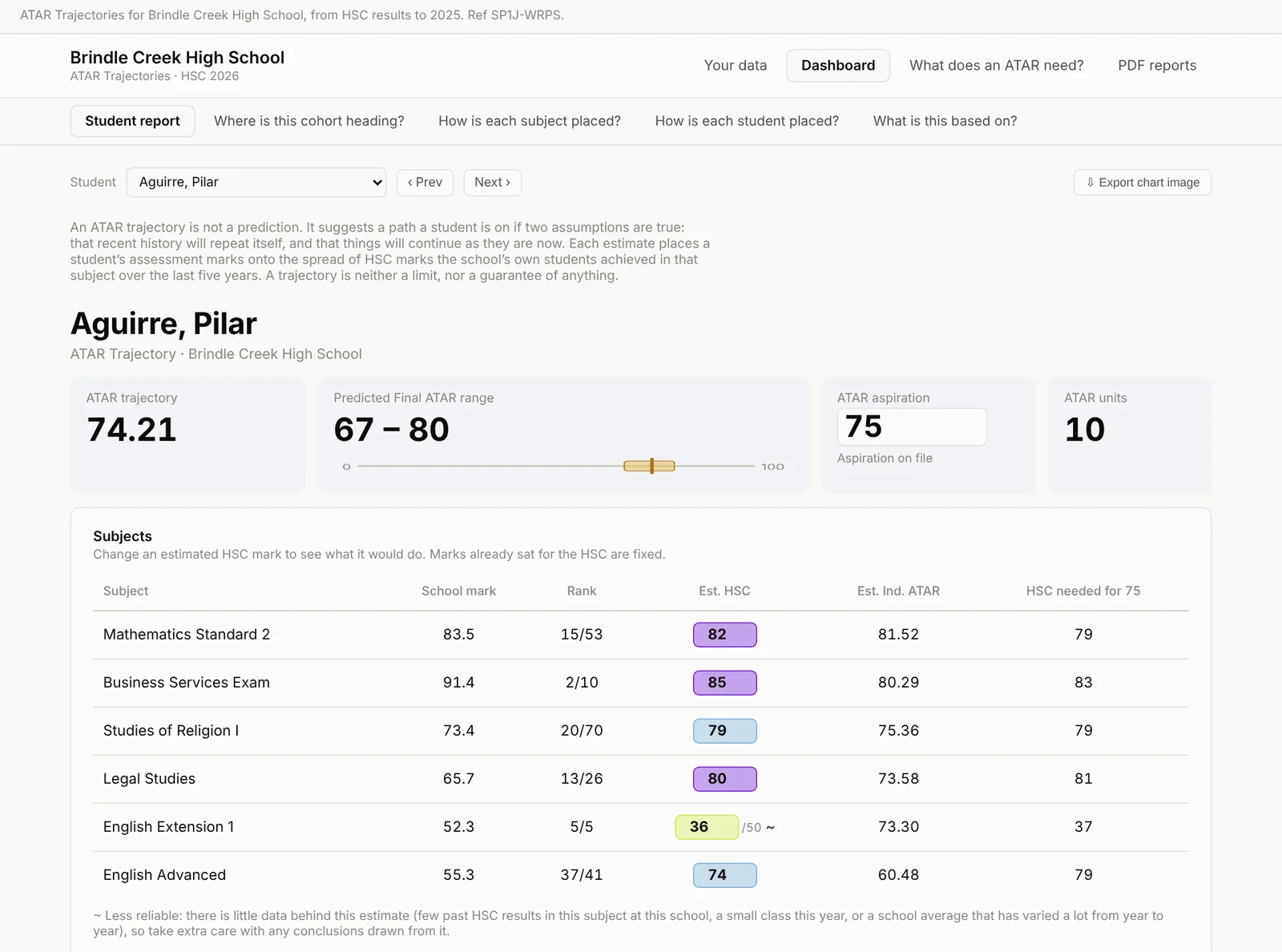
In a conversation with a student, you can type a different ATAR aspiration into its box, or change an estimated HSC mark, and the report updates to show what that would do.
You can also add a subject or take one out, for example when a student changes subjects at the end of Year 11, or has a distance course whose marks you don't have. An added subject is estimated from how the student is achieving in their other subjects, and you can type your own estimate over it. A school mark you type in for an added subject is kept for the record only. Nothing is worked out from it.
Make this student's PDF report saves that one student's report to your Downloads folder. If you've changed anything, the report says amended, shades the rows that changed, and lists any subject taken out. These changes aren't saved: choosing another student starts again from the trajectory.
The other tabs along the top:
| Tab | What it shows |
|---|---|
| Where is this cohort heading? | This cohort’s ATAR trajectories alongside the last five cohorts’ Final ATARs |
| How is each subject placed? | One subject in detail: this year’s students and your school’s own HSC results in it over the last five years |
| How is each student placed? | Every student’s trajectory and the spread of their subjects. Click a student to open their report |
| What is this based on? | How a trajectory is made, in plain words |
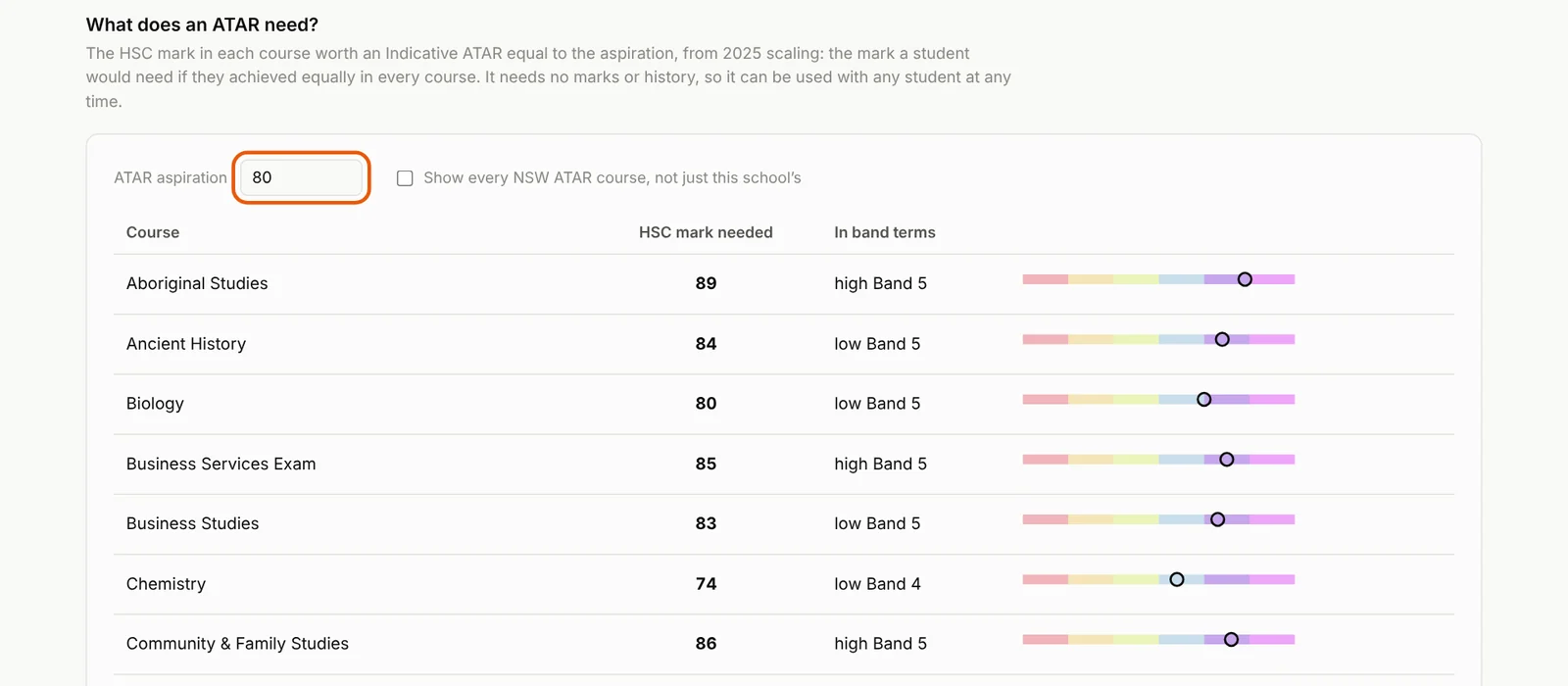
What does an ATAR need? needs no marks at all. Type an ATAR aspiration and it shows the HSC mark, and the band, each course needs for it. It works for any student at any time.
Step 7: Make the PDF reports
On the PDF reports tab, choose which reports you want:
- A report for each student, one page, for staff to use and students to take home.
- A report for each subject, for heads of faculty and teachers.
Some schools prefer students not to see their assessment marks or ranks on a report they take home. Untick those if you'd rather leave them off. The dashboard still shows both.
Click Choose a folder and make the reports. When the folder window opens, make a new folder inside your Downloads folder and choose it. Edge and Chrome won't save straight into Downloads itself, and folders synced to OneDrive can interrupt the saving. Your browser may ask once for permission to save there.
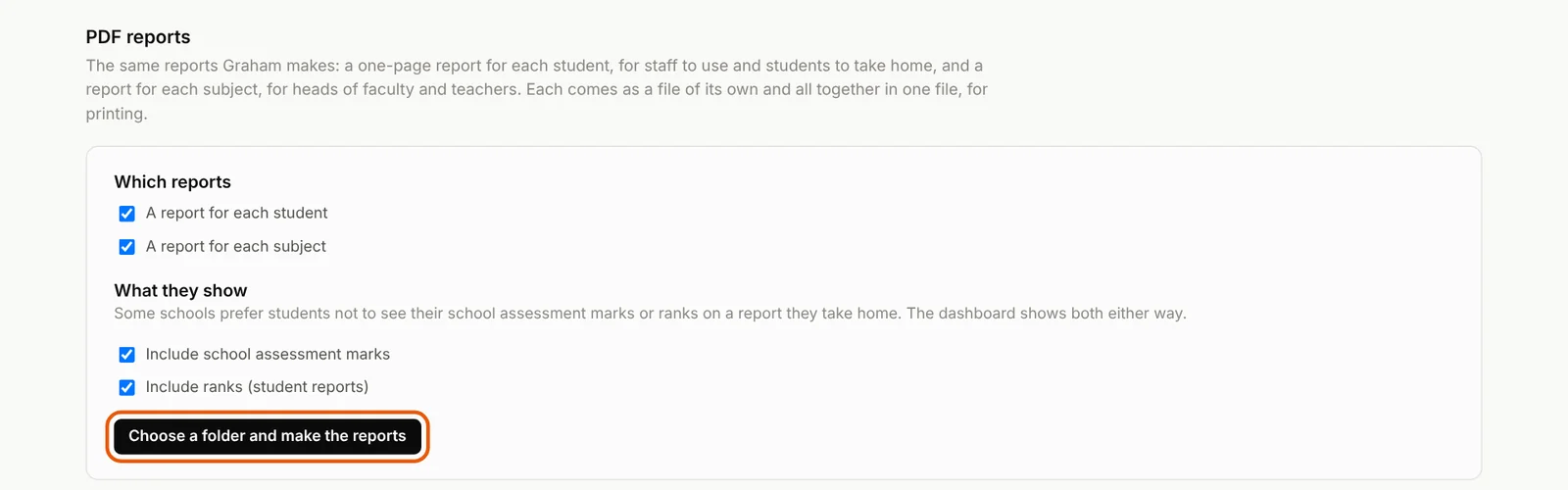
The reports go into a new folder there, named for your school and the date. Each report is a file of its own, and they also come all together in one file for printing.
When marks change
Run it again whenever you have new assessment marks. Open your ATAR Trajectories file, click Start again, and add the new marks file. Your course choices from Step 5 are remembered on that computer.
When your new HSC dashboard arrives from me after results day, save a new ATAR Trajectories file from it, as in Steps 1 and 2. That brings in the latest scaling and your school's newest HSC results. If your file asks for an unlock code, each year's copy has its own.
If something goes wrong
The dashboard tells you what it found. Anything marked Needs an answer must be settled before those students or courses can be used. The most common messages:
| You see | What to do |
|---|---|
| Some content didn’t load, or A script didn’t run correctly | The file was opened in a OneDrive, SharePoint or Teams preview. Download it and open it from your computer. |
| No students’ marks were found | Check the sheet has a heading row, with the students’ names and the courses or marks. |
| A course name wasn’t recognised | Choose what it is in its dropdown under Courses, or leave it out if it isn’t an ATAR course. |
| A course name was matched but not certainly | Check it under Courses and change it if it’s wrong. |
| Fewer students than usual have a mark in a course | A class may be missing. Add it if so. |
| Students are enrolled but nobody has a mark yet | Add that course’s marks when you have them. |
| An ATAR aspiration belongs to a name that has no marks | Make the name the same on both sheets. |
| Some students have fewer than 10 units of ATAR courses | No ATAR trajectory can be worked out for them, but what they need in each course is still shown. |
| A student who sat HSC courses early has a name close to one in these marks | Choose the right student in their dropdown under HSC courses already sat. |
| A course in this year’s marks was already sat for the HSC | Choose which mark counts under Courses already sat and in this year’s marks: the HSC result, or this year’s mark if the student is repeating. |
Still stuck? Email me at gwright@educonsulting.com.au or call 0437 263 762, and say which message you see.